How it was made
A dev board based on the SAMD21E MCU. Designed in Eagle and milled on an Othermill
I designed the board in spirals. First I implemented everything in Prof. Neil Gershenfeld’s HTMAA example schematic for a SAMD21E board, then added the extras.
Breaking out the pins
I wanted to break out all the pins for future breakout boards. I used horizontal pins instead of vertical ones for ergonomics when the board is placed in a pocket. I broke out every unused pin on the SAMD21E except four:
- PA00 and PA01 are oscillator pins meant for a crystal. The SAMD21E includes multiple internal RC oscillators so doesn’t require an external crystal.
- PA27 and PA28 were kept for on-board status LEDs
I broke out ground, 5V and 3.3V pins in various places also.
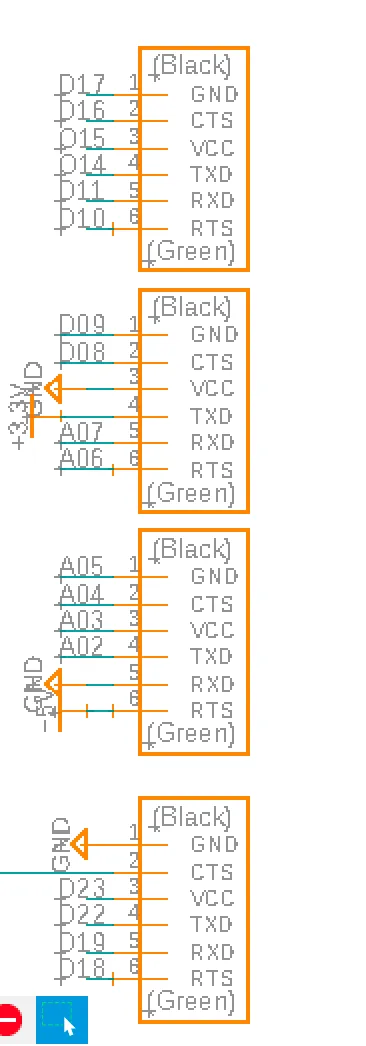 Header schematic
Adding a reset button
While developing firmware things often go wrong, you end up in weird states, or you just need to start over. Most boards include a reset button for this, and I wanted one too.
The microcontroller restarts whenever the reset pin is brought to ground. The pin is already used by the JTAG, so I connected my extra components to the same net. The pin has a 100ohm pull-up resistor to 3.3V, and a button shorts the line to ground when pressed.
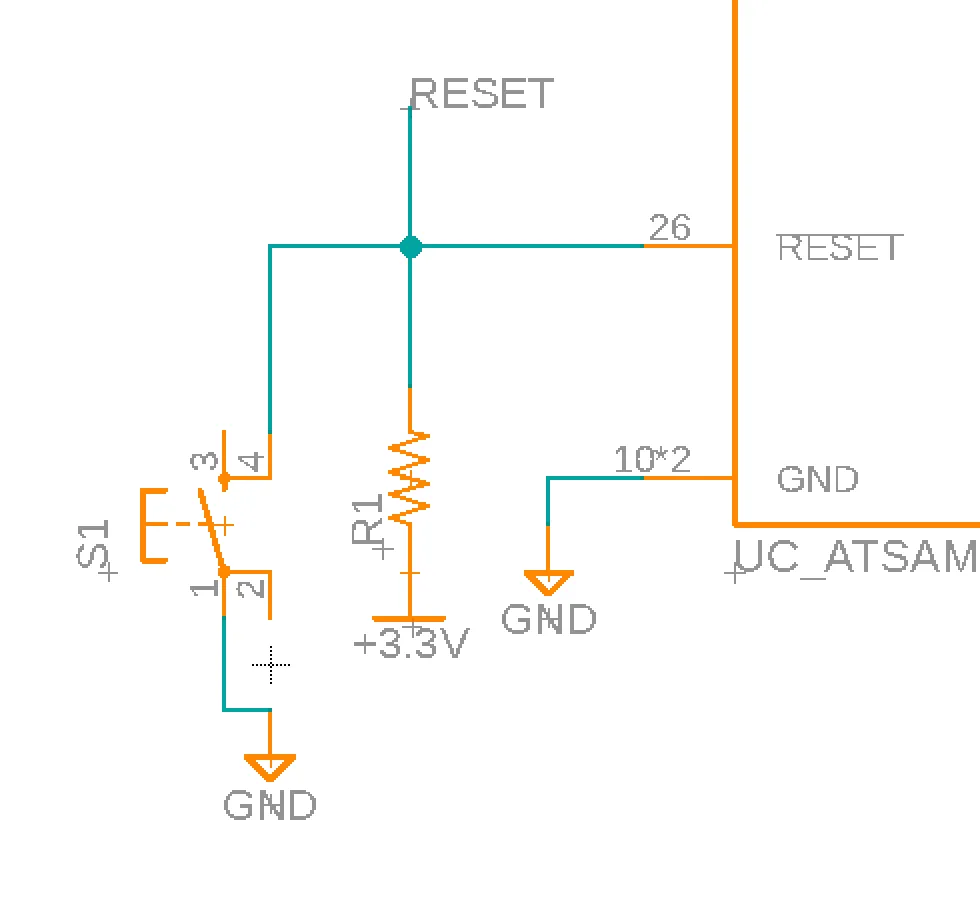 Button schematic
Power and status LEDs
I wanted one LED that’s always on when the board has power, plus two more for debugging and status. The power LED is wired directly to 3.3V and ground.
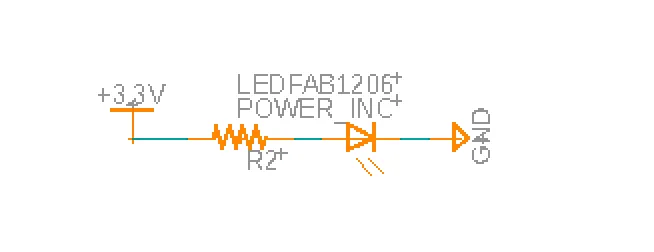 Power LED schematic
For the status LEDs, I wired resistors and LEDs to PA27 and PA28.
Micro USB
I included a micro usb port to program the board over
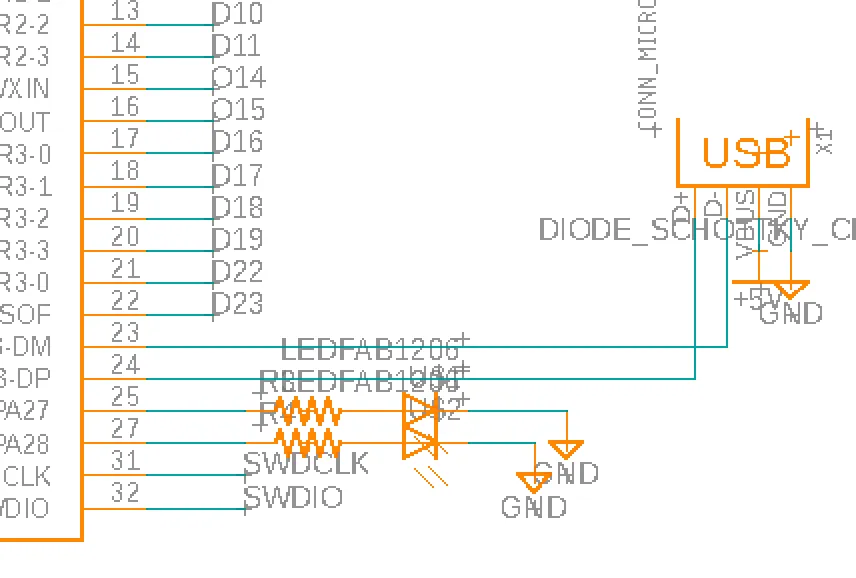 Micro USB schematic
Barrel jack connector
Finally I wanted to a barrel jack connector to power the board in the various places it might end up. I included a 5V regulator to step down up to 12V which could be supplied.
The barrel jack has a switch. When on, it sends the regulator’s 5V to the board and the GPIO pins. When off, 5V only goes to the GPIO pins.
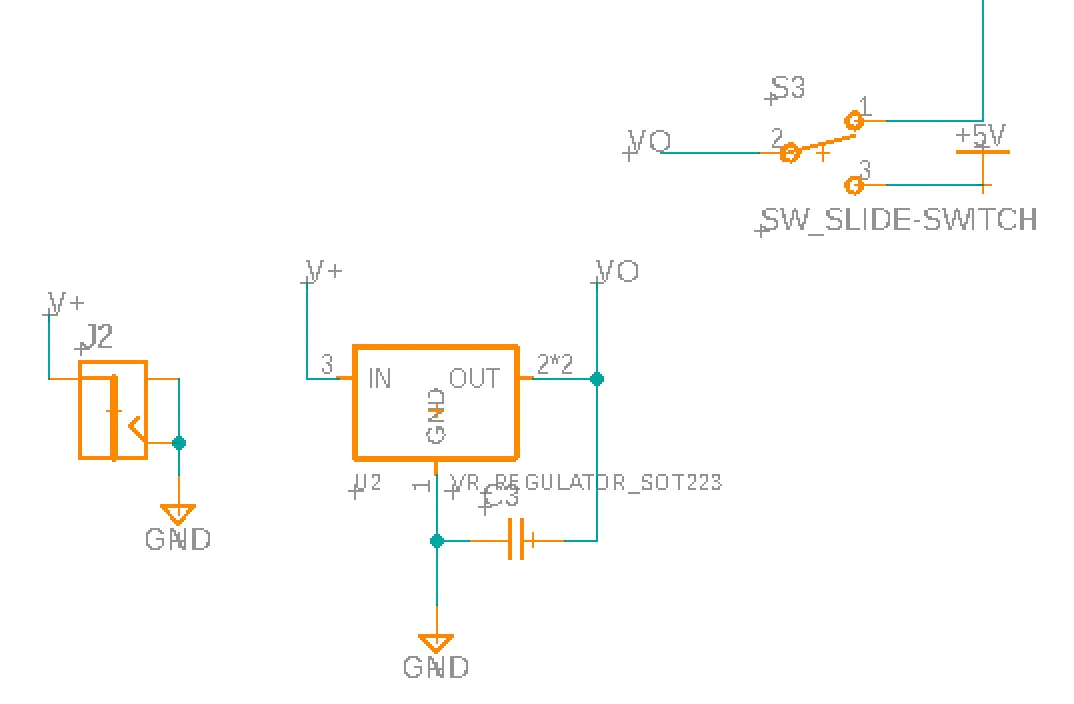 Barrel jack schematic
Schematic for the dev board
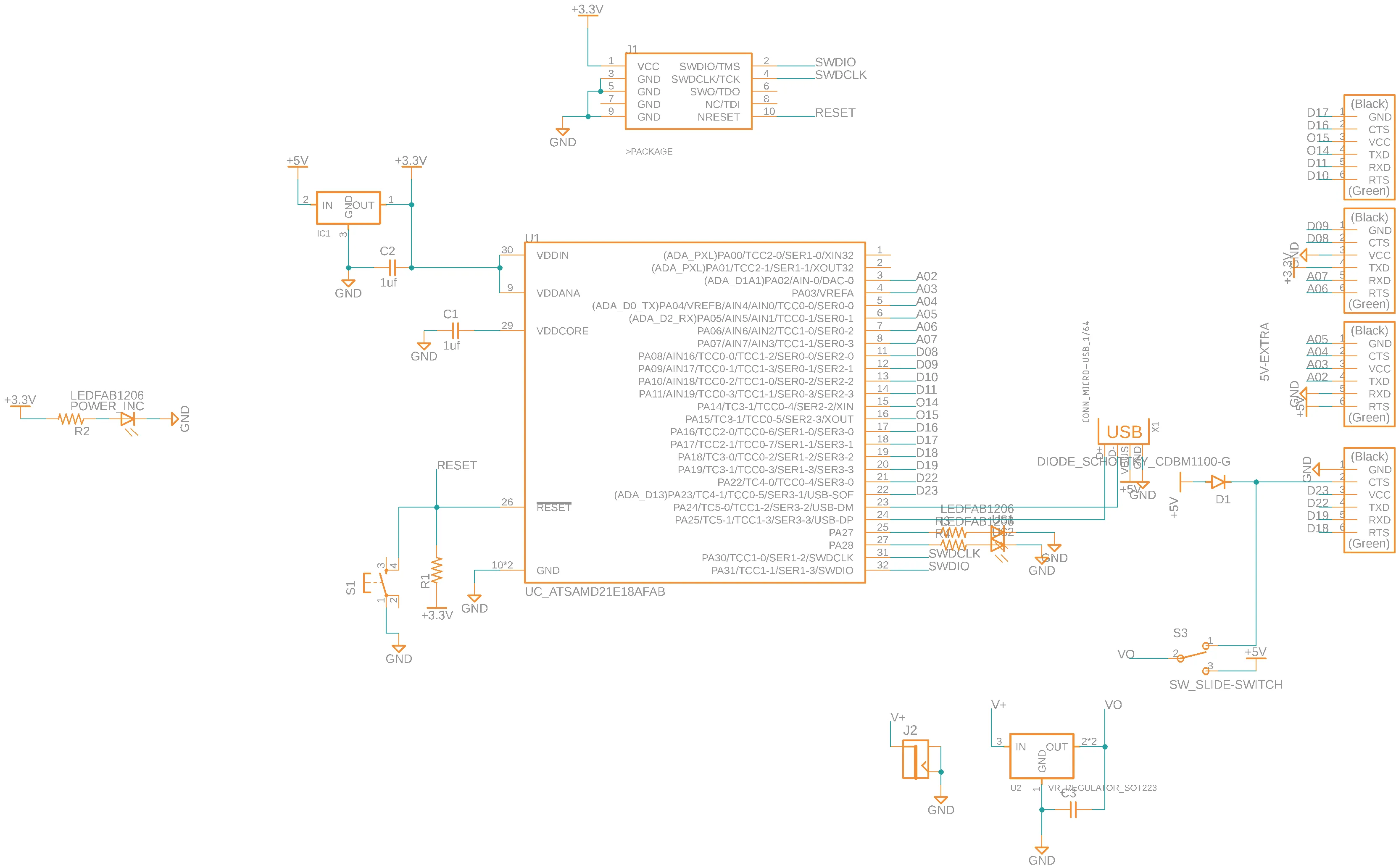 Schematic for the dev board
Routing the board
Since this board was going to be milled, I wanted to route this as a single-layer board. Using a second layer would require vias which on a milled board usually necesitates hammering rivets in (as copper electroplating is diffcult / toxic).
I started by placing the SAMD21E in the centre and connecting it to the headers. Then I placed and routed everything else. In the end I needed no vias or 0 ohm resistors. The trick was running a ground trace along the far side of the FTDI header pads and routing underneath the SAMD21E and the button.
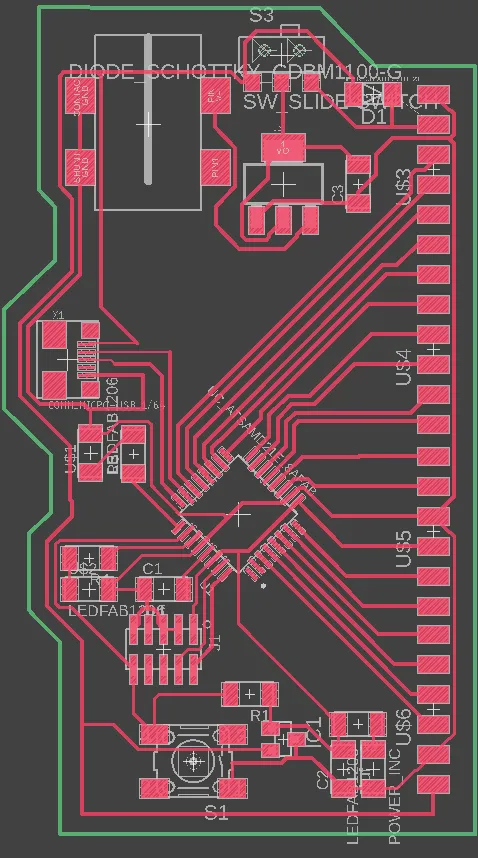 Routed dev board
Adding a little flair
The only thing left was a bit of flair.
In my freshman year, the number 1213 came up while I was writing equations on a whiteboard. My handwriting is atrocious, so the digits mashed together into something that looked like RBT, which conveniently are my initials. Ever since, I’ve put 1213t on things I make.
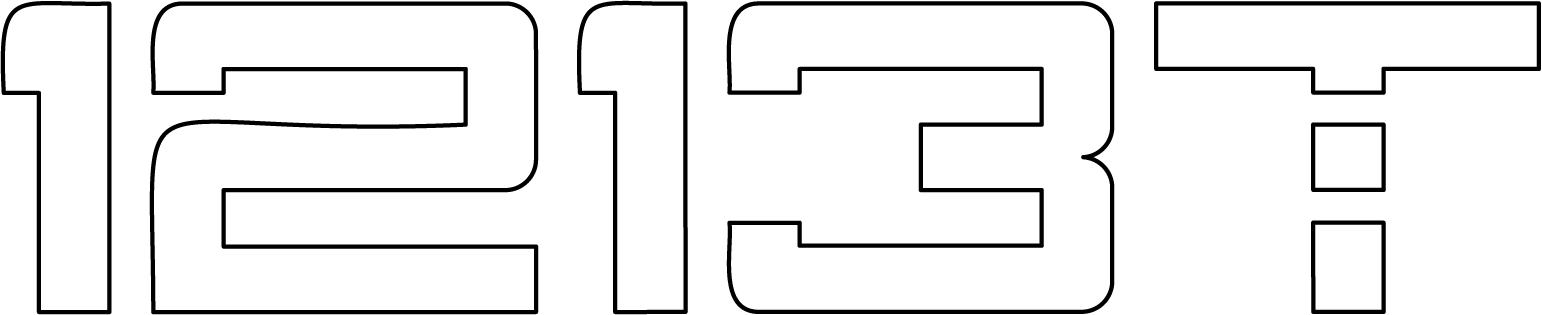 My initials
Eagle at time had poor support for image, so I followed a SparkFun guide, which has you install a ULP script for SVGs. On a Mac, you can find the ULP folder under your profile (top right) > Preferences > Electronics > Directory > Directory for ULP.
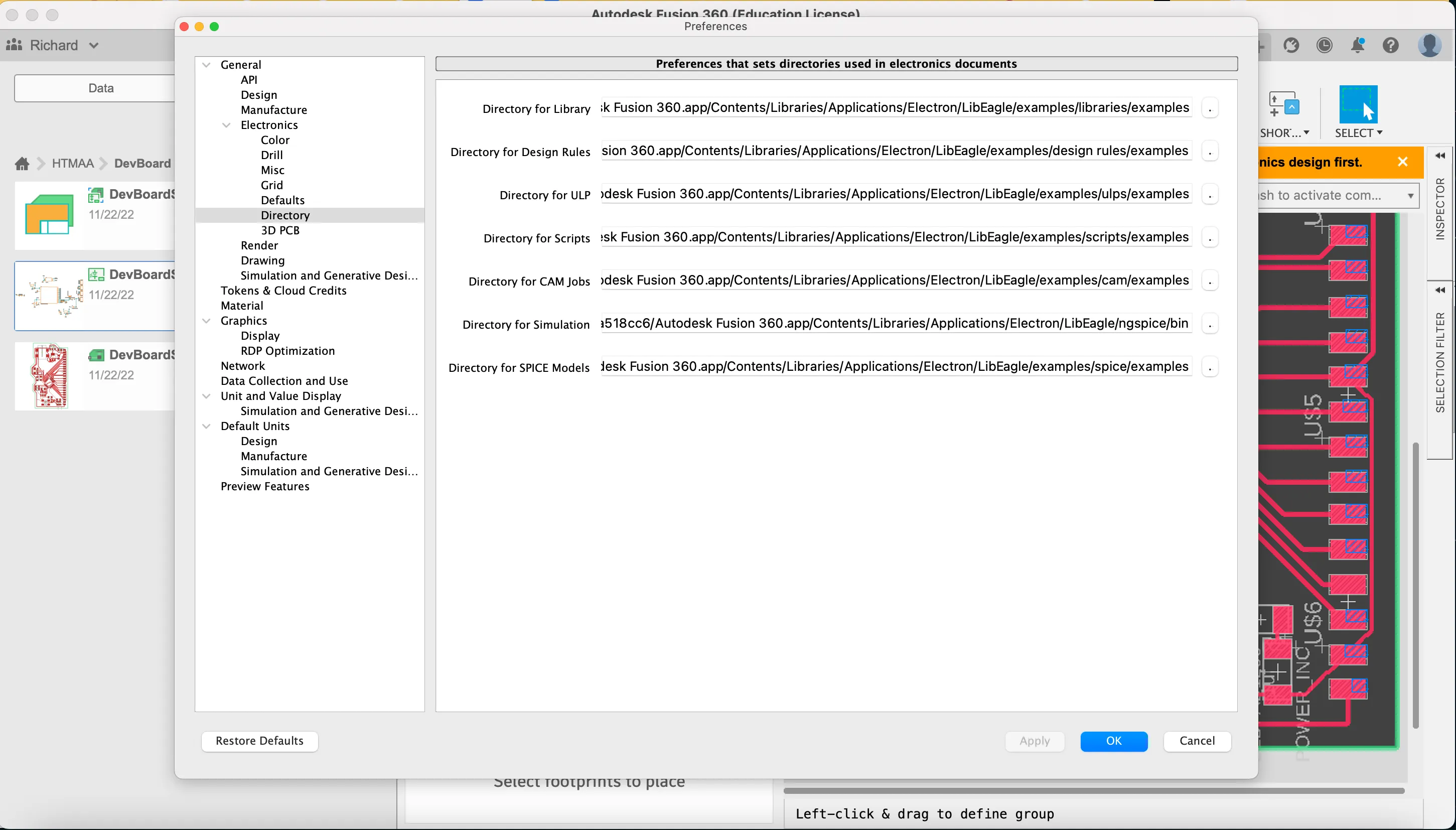 ULP directory in Eagle settings
I ran the svg2poly script, picked my file and clicked Ok.
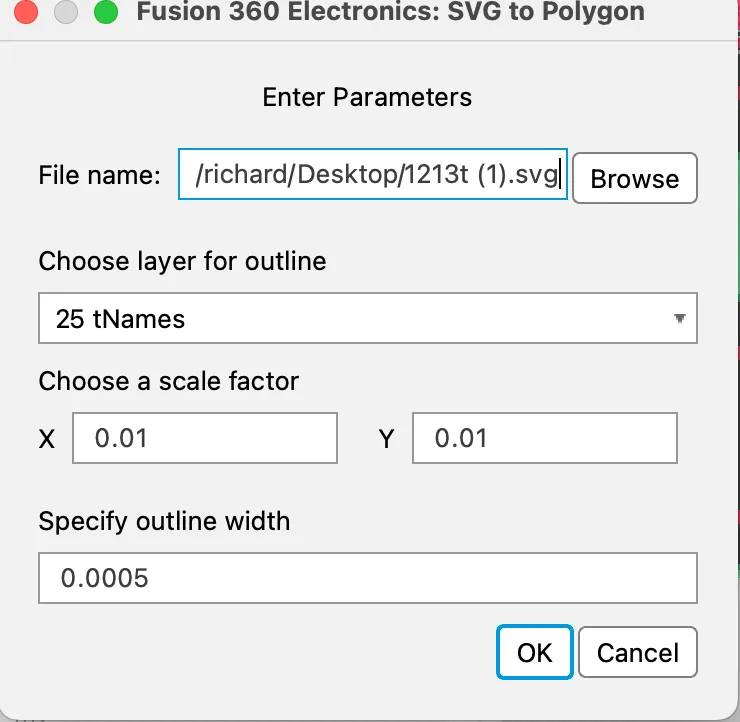 svg2poly prompt
Nothing appeared 😥, whatever scale I tried. Next I tried a bitmap: I exported the SVG from Illustrator and imported it with run import-bmp. RGB had too many colours, and greyscale showed off how old Eagle is by opening a colour dialog so large I couldn’t reach the ok or cancel buttons.
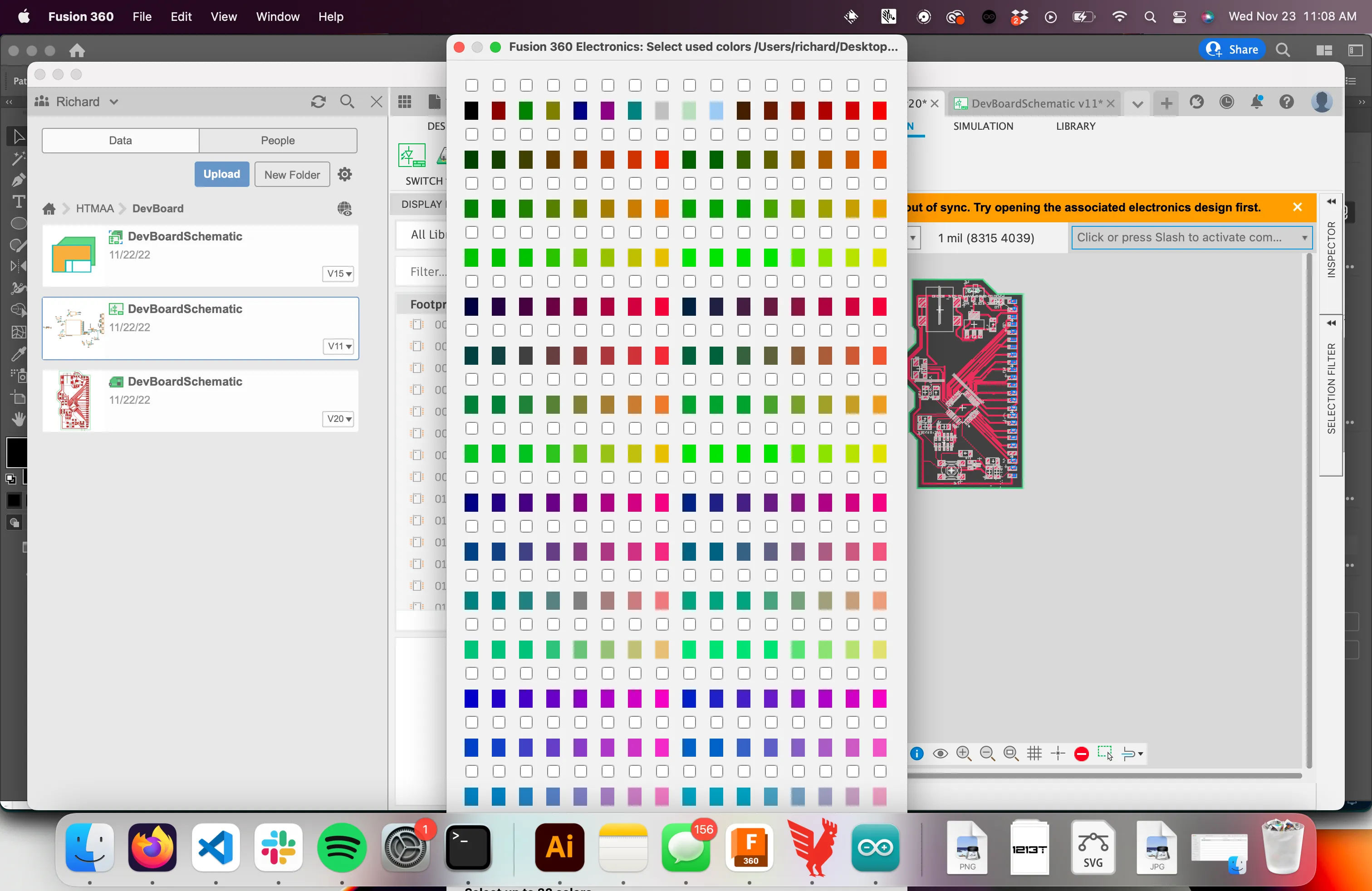 Colour dialog too large for the screen
Only black-and-white bitmap mode worked, and the result was literally made of individual coloured squares. The warning I’d skimmed said as much: the feature is meant for tracing over with the polygon tool, not for keeping.
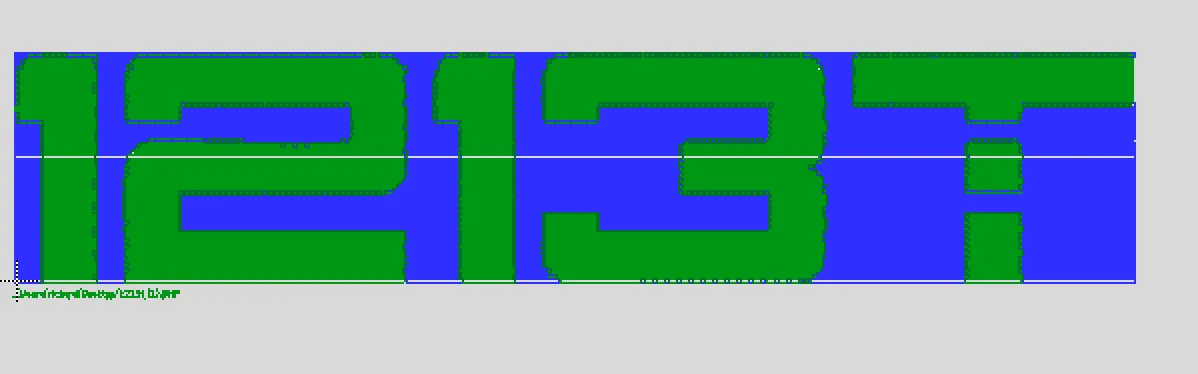 1213t imported as a bitmap
The last option was DXF. I re-exported from Illustrator and ran run import-dxf. The first attempt showed nothing, but after fiddling with the scale something finally appeared.
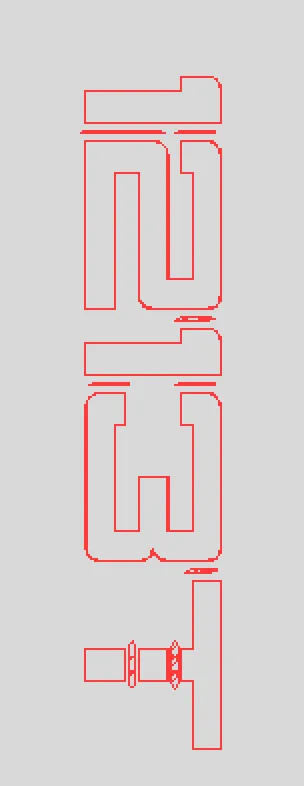 1213t imported as a DXF
With my clearance settings the traces were too close together, and Eagle wouldn’t let me move them directly. I had to deform each letter to satisfy the rules, move it individually and reassemble everything, then fill the letters with Polygon > Polygon Pour from Outline. It looked pretty awful, and worse in the Othermill.
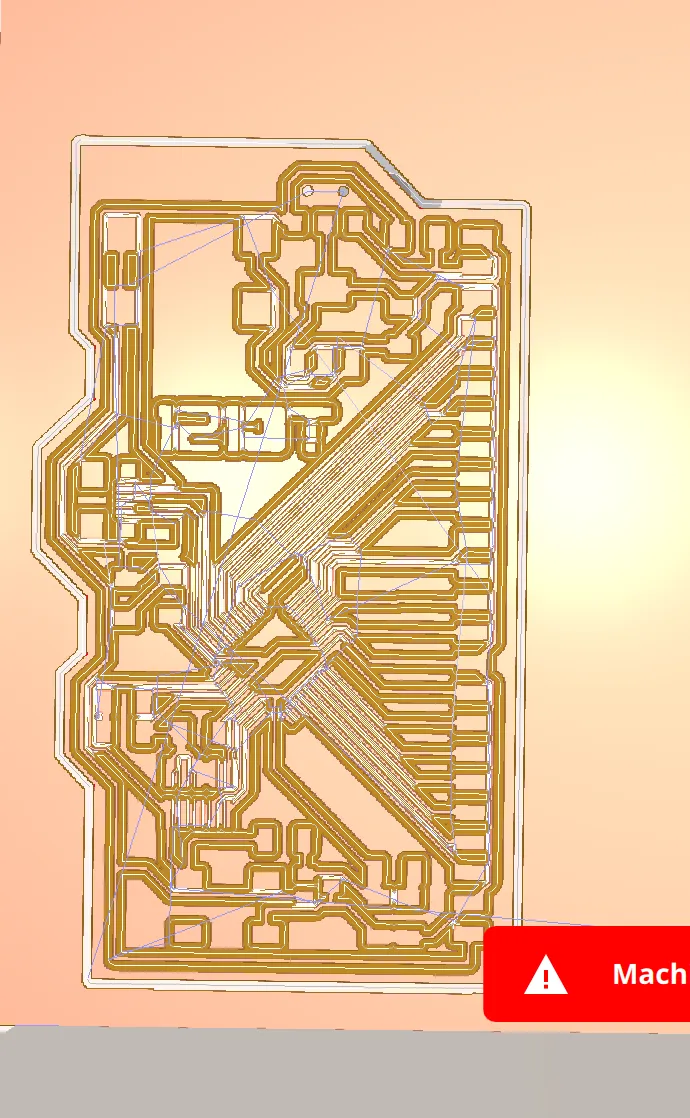 Awful CAM plan for 1213t in the Othermill
It no longer looked like my signature. Two hours in and pretty frustrated, I finally did what I should have done at the start and googled it. The Othermill can engrave SVGs directly.
Milling the board
For milling boards I had previously been using 1/64” endmills, however these cost around $18 apiece and break easily. Instead, engraving bits can be used which cost ~$1. They’re also faster: switching from the 1/64” FEM to a 0.005” engraving bit cut my milling time from 39 to 25 minutes.
However, as engraving bits have a “V” shape at their end it’s very important to know the exact height of the copper blank (including the tape underneath). If this is wrong you’ll go further up the V causing a wider region to be removed which will wreck tight traces.
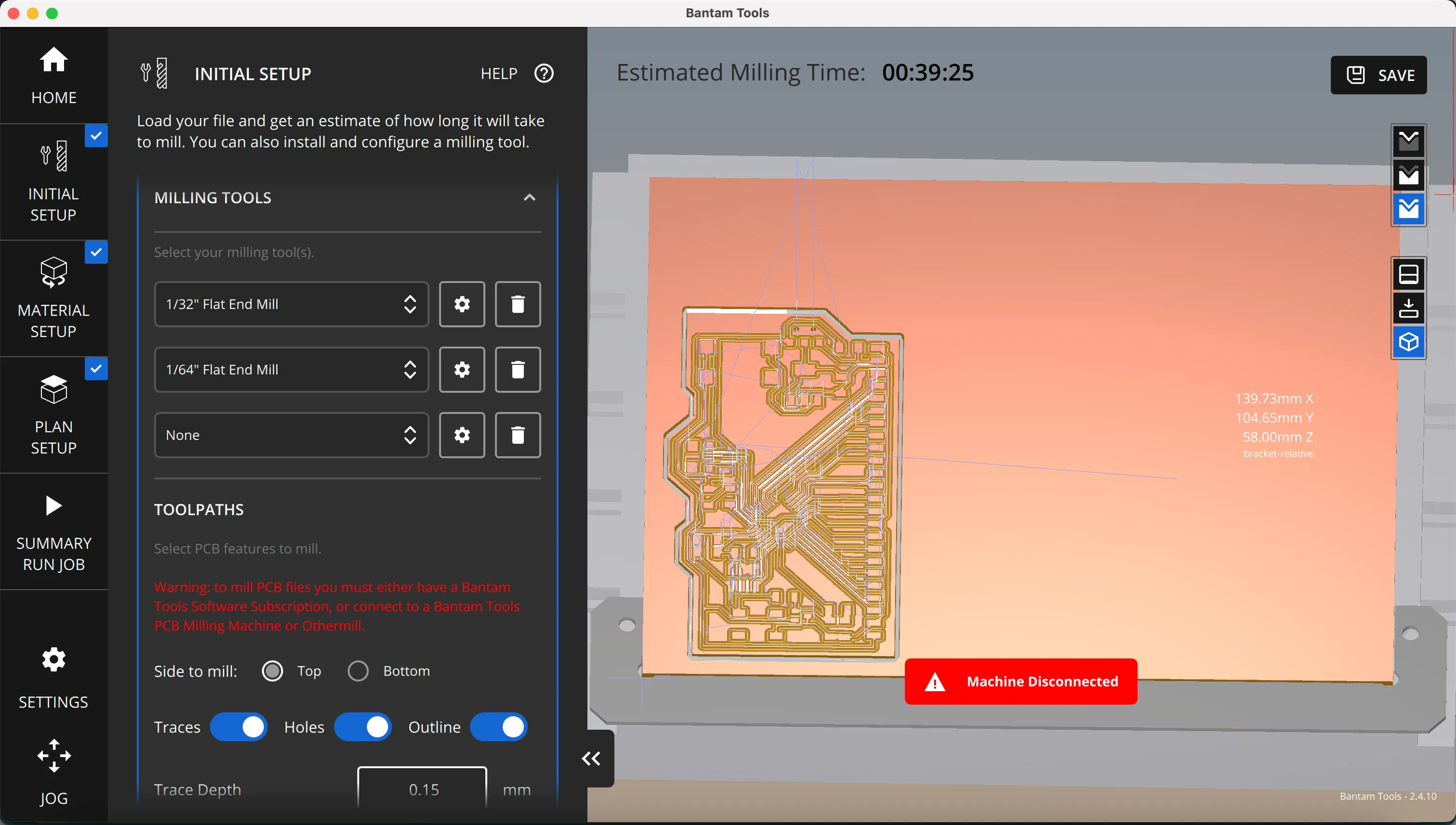 Othermill job time using a 1/64 endmill
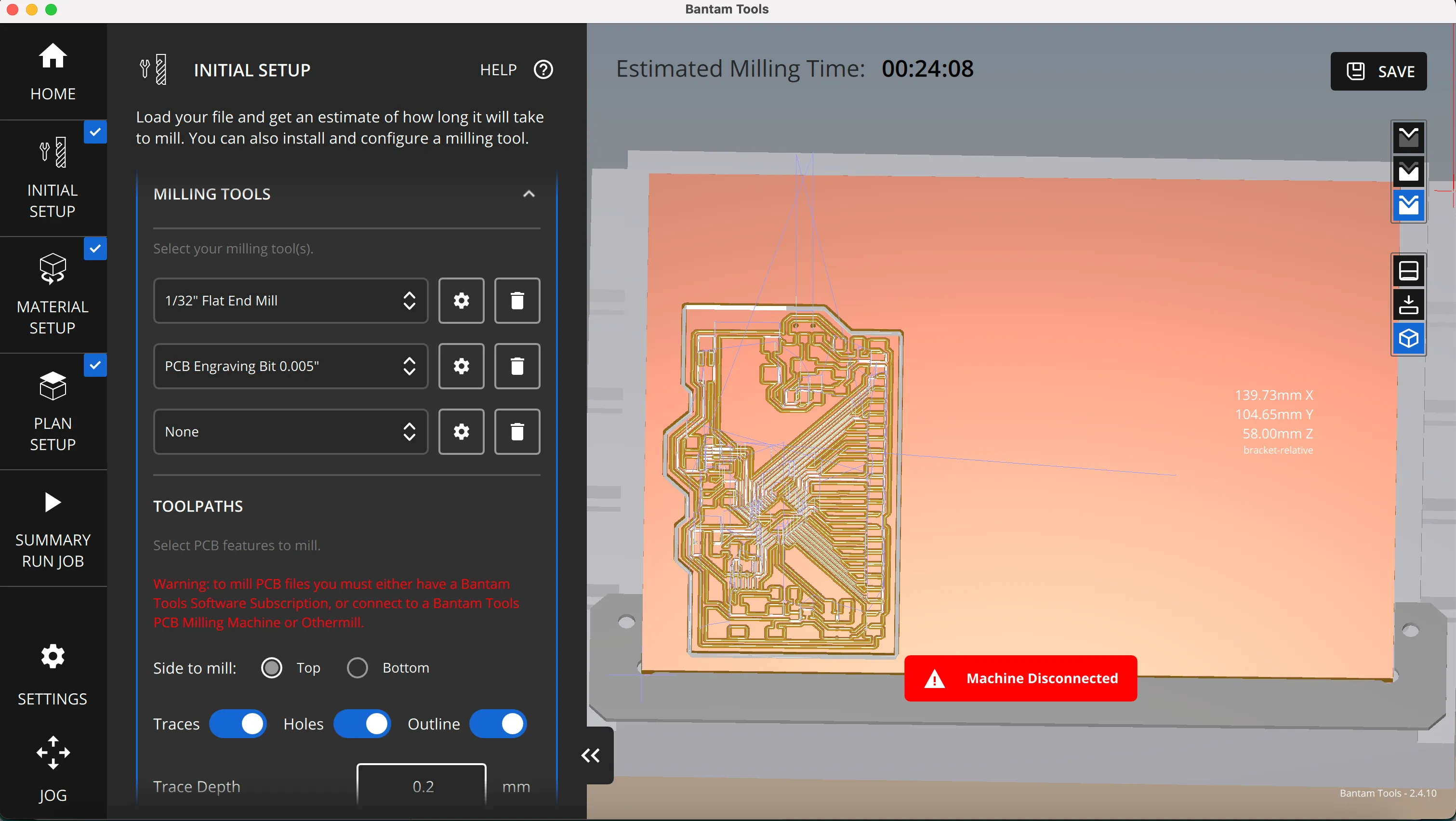 Othermill job time using a 0.005 engraving bit
I followed a guide from Bantam Tools (what Othermill rebranded to) on setting up the engraving bit. I laid the double-sided tape carefully so none of it overlapped, since that would cause a height difference. Then I measured the material and tape with digital callipers and entered it under thickness.
I added the svg file of my initials in Bantam Tools also. I set the tool to the 0.005” PCB engraving bit. Then in the Plan setup tab I positioned the text where I wanted it engraved.
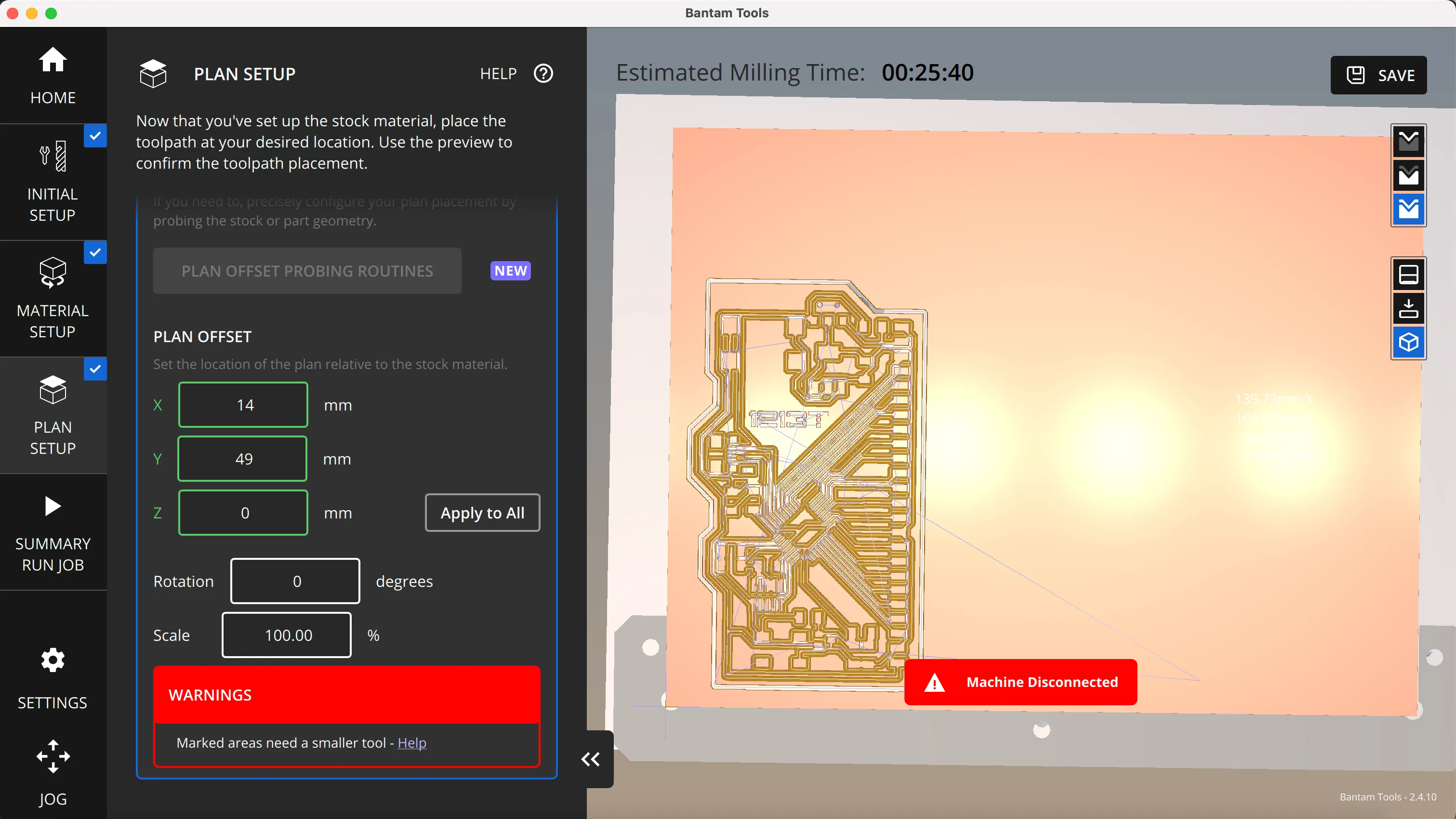 Othermill job
The milling job ran and everything worked great.
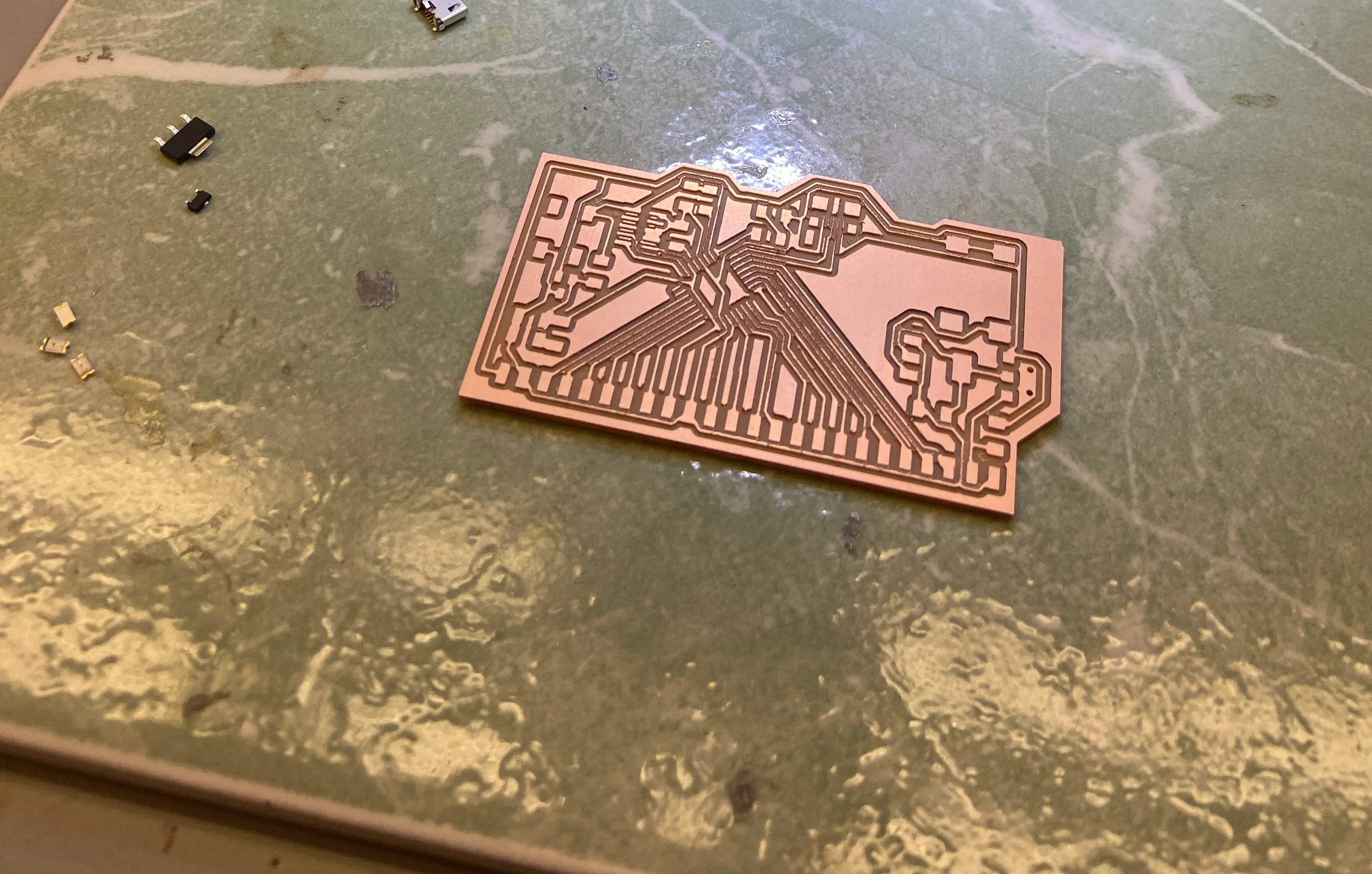 Milled board
Soldering
The SAMD21E is a pretty small chip, so I soldered it with solder paste and a hot air gun, then did the rest of the components by hand.